
If your employer has granted you access to the WorkZone app and enabled you to clock in/out from the WorkZone app you can access this feature from the employee dashboard once you log in.
How to Clock in/out
Step 1: When logged in, the employee dashboard will display a ‘Clock In’ option. Tap on ‘Clock In’:
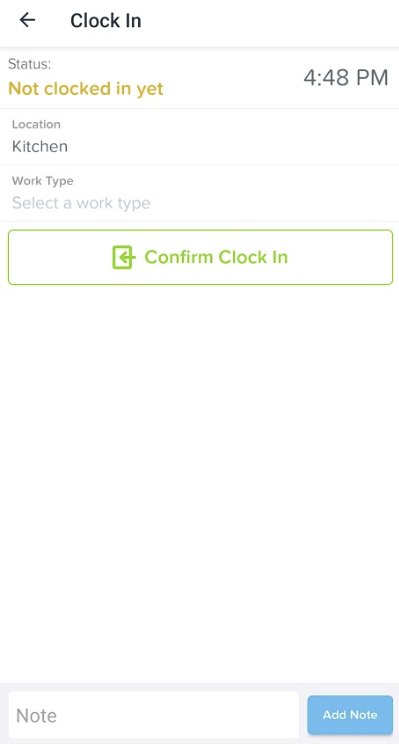
Step 2: This next step varies based on the options your Employer has set up for you. Some of these options include:
- The location (this will auto populate if you only have access to one location);
- A work type (may not be required for every shift and will only appear if you have work types activated in your profile);
- Notes
Step 3: You will be required to take a photo (if this setting has been enabled)
Step 4: You will then need to tap on ‘Start Break’ (if you are required to capture break times) or tap on ‘Clock Out’ to finish your shift. Both activities will require a photo to be taken (only if this setting has been enabled):
Once you have clocked out of your shift this will automatically create and submit a timesheet for the shift. You can view this timesheet from the submitted timesheet section on your WorkZone app home screen:
If you haven’t already, you can download WorkZone immediately by clicking here:

