
In order to update your bank account details within the employee portal you simply need to enter 'Employee Details' (see here for help). Once in your details page, click 'Bank Accounts' to the left of screen.
The bank account details screen allows you to control how much of your pay goes into a bank account by specifying a percentage or fixed amount.
Adding a Bank Account
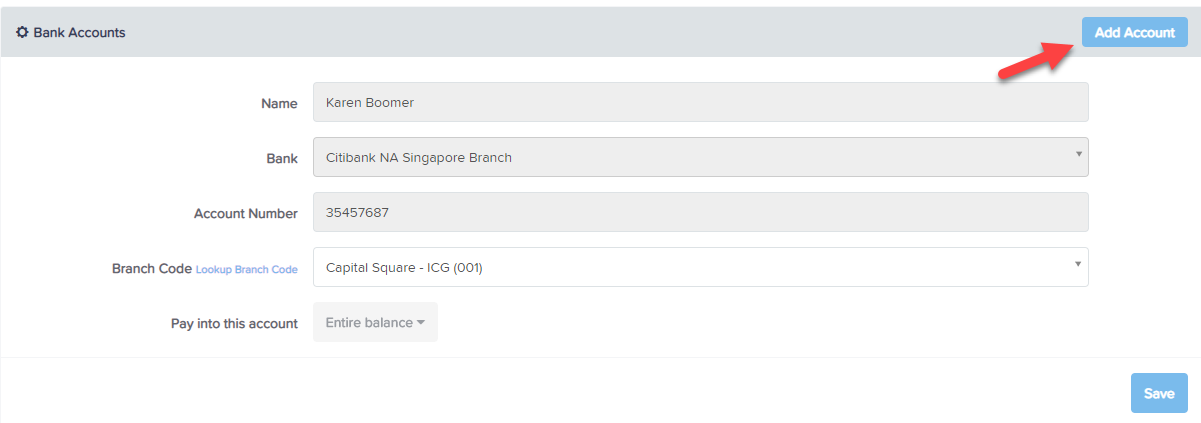
Once you click on 'Bank Account', you will then be required to enter the following details:
- Name: The employee's first name and surname will pre-populate in this field. You can edit this value however if the account name is different.
- Bank: From the drop down box, select the required bank
- Account Number: Enter the employee's account number here. Up to 35 numeric characters can be entered.
- Branch Code: The system will retrieve a list of branch codes based on the bank name and account number provided.
- Pay Into Account: Choose from adding the (a) entire balance, (b) a fixed dollar amount or (c) a fixed percentage amount. If only one bank account is to be set up, the value here must be "Entire balance".
- Then click "Save".
Deleting Bank Accounts
In order to delete bank account details, you simply click on 'Delete this bank account' if it is displayed in red. If it is in grey, it means it cannot be deleted. Common reasons for this is (a) it is the only bank account recorded for you and so another bank account will need to be added before it can be deleted or (b) the bank account is attached to a recurring deduction and so cannot be deleted until the deduction expires or is deleted. You will need to speak to your payroll administrator to have this changed.
Editing Bank Accounts
You may find that a bank account is greyed out and cannot be edited. This is because your payroll administrator has restricted this setting. There will also be a warning at the top of the screen to indicate this.
Otherwise, you can simply amend existing bank account details and then click on "Save".