
As a new employee, you are now able to be a part of the setup process with the introduction of Employee Self Setup (also known as onboarding).
What can be a tedious process of paperwork moving back and forth has been turned into a faster, more accurate, and simpler method thanks to this feature.
The process is started by your employer after which time you will receive an email with a link to the Employee Self Setup wizard:

Once you click the link you will then proceed to the Self Setup wizard to start the process. You are able to skip any page for completion at a later date if necessary. The steps are:
Personal Details
Title, name, date of birth, gender, address, email and phone number. Some of this information will be pre-populated from the initiation process performed earlier by the employer. When entering an address, auto-complete suggestions may be presented. To pre-fill an address, click on a suggestion. This will also auto complete the Residential City field. If the suggestions are not adequate or you live overseas you will need to tick the checkbox Enter Residential Address Manually. This will open additional fields and all fields (other than Residential Address Line 2) must be completed. Also note that, outside of Country, all other fields are free text so there will be no validation done to ensure the address is correct.
Note: for mobile number, it must have a maximum of 11 digits and start with a prefix of '02'.

Banking Details
You are able to add multiple bank accounts, and select how much of your pay is to go into each account. The account number is 15 or 16 digits which consist of the bank code, account number, and suffix.

KiwiSaver Details
It is important that you read the 'Your introduction to KiwiSaver - employee information (KS3) factsheet here.
For KiwiSaver forms, refer to the below links:
For further information on KiwiSaver please refer to kiwiSaver.govt.nz
KiwiSaver Enrollment Options: Automatically Enroll, Opt-Out, Contribution Holiday. This will default to 'Automatically Enroll' as a new employee. Please note if you choose 'Opt-Out' or 'Contribution Holiday' you must have completed the relevant IRD forms and provide the form to your Employer.
Employee Contribution: select the KiwiSaver contribution percentage you would like to contribute, options are 3%, 4%, 6%, 8% or 10%.
It is your employer's obligation to contribute at least 3% into your KiwiSaver. Discuss with your employer regarding the employer contribution amount.

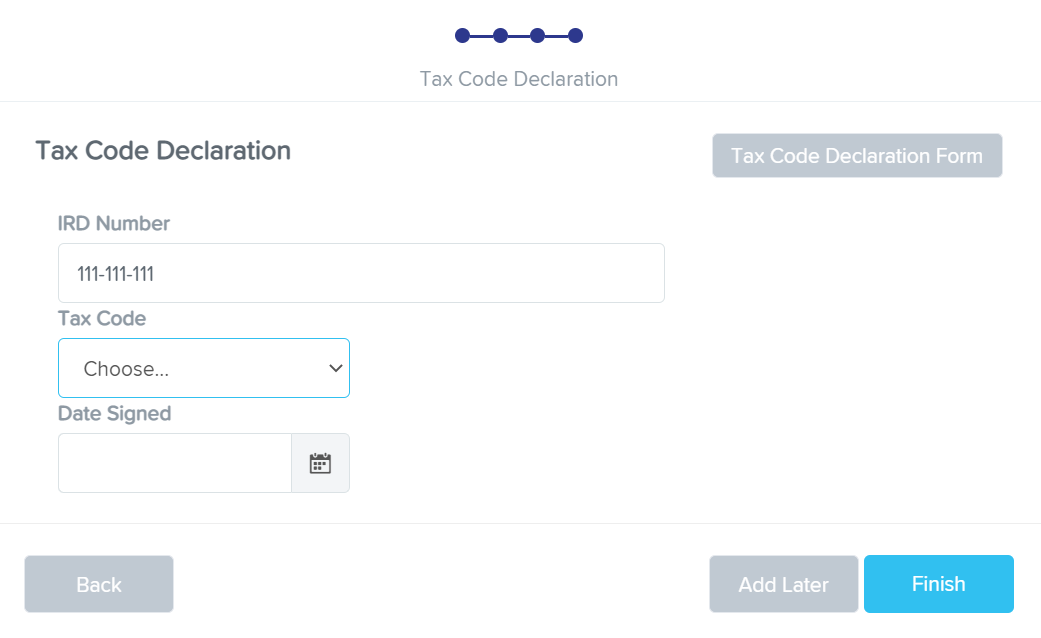
Tax Code Declaration
Please provide your tax code declaration details.
IRD Number: This is your unique identifier 8 or 9 digit IRD Number.
Tax Code: Choose your tax code from the drop down. The options are:
- Primary Income - M, ME, M SL, ME SL
- Secondary Income - S, SH, SB, S SL, SH SL, SB SL
- Other Income - NSW, CAE, EDW, STC
- Non Disclosed - ND
For more information, please refer to the tax code declaration form here.
Your employer may wish that you enter in 'Qualifications' and or 'Emergency contacts' details; if so then continue below. Otherwise, click on 'Finish' button.
Qualifications
If the employer has requested that qualifications be added as a part of the Employee Self Setup, you will be able to add them here. The qualifications that are listed reflect the qualifications that have been added at a business level. Simply click on the toggle to "add" it to your employee profile. Once added you can then select an expiry date (if relevant) and add an attachment.
Emergency Contacts
If the employer has requested that Emergency Contacts be added as a part of the Employee Self Setup, you will be able to add them here.
Once you click 'Finish', Employee Self Setup is complete:
Please note that once you have 'Finished' the process, you are NOT able to come back and make changes. The Self Setup will be closed and further changes must be made through your employer or your Employee Portal (if you have been given access)
Now that the Employee Self Setup has been completed, an email will be sent to all payroll admins that are registered to receive Self Setup emails. Clicking the link in the email will allow the employer to view the new employee information. Once the employer reviews and adds other required information, you - the employee - will be available for future pay runs.
If the employer has given you Employee Portal access, you will also receive an email containing a link to set this up.